 Level Up Makers
If your child wants to make a game, two free tools come up right away: Microsoft MakeCode Arcade and Scratch. Both run in a web browser. Both use blocks that snap together, so a student can build something before they can type code.
Neither one is the right first tool for every student. The useful question is what they want to make first, and what you are willing to set up beside them.
What they share
- They are free.
- The website needs no install. A computer and a browser are enough to start.
- Students snap blocks together instead of typing code.
- They can draw their own character.
- They can press play and see the result on the same screen.
- Sharing can wait. It is a grown-up decision, not a step for the first afternoon.
Scratch
Scratch is a free programming language and an online community for stories, games, and animations. Its page for parents says it is aimed mainly at ages 8 to 16, and people of other ages use it too, often with a parent. Open scratch.mit.edu and choose Create.
A new project opens on a wide stage, 480 by 360 pixels. A character is a sprite. It can wear different costumes. The background is a backdrop. Blocks move the sprite, turn it, make it talk, switch costumes, and play sounds. The green flag starts the project.
That open stage is why so many first projects fit here. A student can make a short story, a cartoon, a quiz, a tour of a scene, or a game. "My character walks across the stage and explains our idea" is a real project, not a warm-up.
A jumping game is possible too. Scratch does not hand you gravity, solid ground, or a level map. You build those from simpler blocks. Change the sprite's up-and-down position, watch for a color or another sprite, and keep a speed number yourself. Some students like building the rules. On a first afternoon, that same work can use up the time before the game is fun to play.
Saving on the Scratch website uses an account. Scratch's help pages say a new account for anyone under 16 needs a parent or guardian to confirm it. Until that happens, the account can still make and save projects, but it cannot share them or use the community. Read the signup screen together. The rule can change.
You can also skip the community. The free Scratch app saves projects on the computer without an internet connection. It is offered for Windows, Mac, Chromebooks, and Android tablets. It is not required. The website is enough if you would rather not install anything.
If you do share a project on the Scratch website, other people can see it, leave comments, and remix it. That community is a big part of Scratch. It is also a reason to leave sharing off until you have read the settings with your child.
MakeCode Arcade
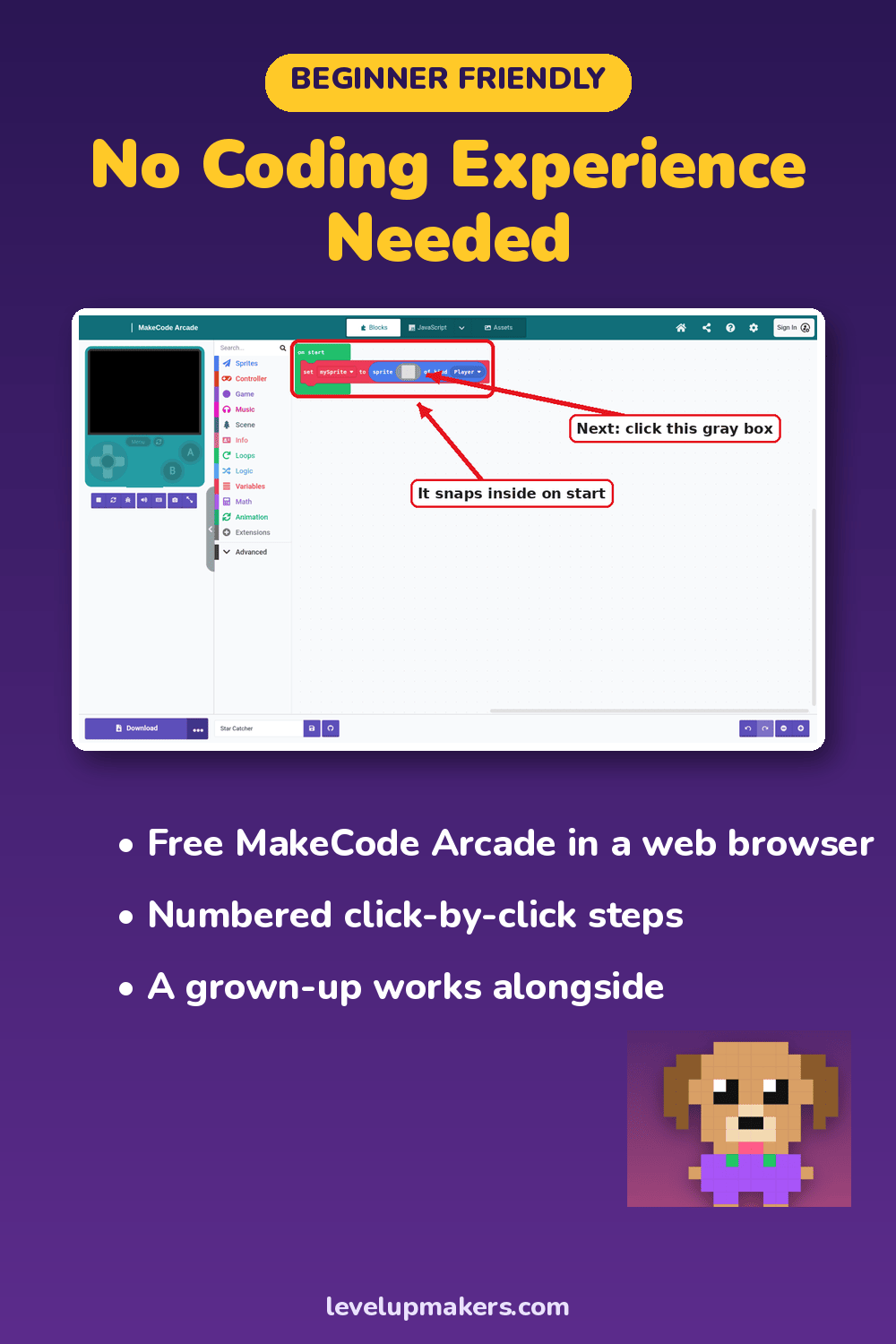
MakeCode Arcade is Microsoft's free game editor. It runs at arcade.makecode.com. There is nothing to install, and a child does not need an account to start. The project saves in that browser. Signing in, with a grown-up's Microsoft or Google account, is for cloud saving. Use the download button for a backup. Clearing browser data can erase a project that was never downloaded.
The game screen is small on purpose, 160 by 120 pixels, closer to a handheld than to Scratch's wide stage. Full screen stretches that same picture. It does not turn into a wide stage. The simulator sits next to the blocks, so a change shows up when they press play.
The blocks assume you are making a game. A student draws a pixel sprite, paints a level on a tilemap, and can mark tiles as walls. Gravity and jumping are blocks. So are a score, lives, and a timer. A first project can be "move, collect, beat the clock" without first inventing how a game keeps score.
Behind the blocks, the same project can be shown as JavaScript or Python. A student who is not ready can stay with the blocks. The text is there later. A closer look at the editor is in What Is MakeCode Arcade?
MakeCode can create a share link. In our guide, that step waits for the last level, a grown-up, and a short checklist.
Side by side
| Question | Scratch | MakeCode Arcade |
|---|---|---|
| A first project it fits | Stories, animations, scenes, and many kinds of games | Small arcade games: move, collect, jump, avoid, score |
| Screen | Wide stage, 480 by 360 pixels | Small screen, 160 by 120 pixels |
| A jumping game | You build gravity and solid ground from motion blocks | Gravity, walls, and tilemaps are already blocks |
| Account to start | Saving on the website uses an account. The app can save on the computer instead. | No account to start. Sign-in is only for cloud saving. |
| Sharing | A confirmed account can share to a public community. Shared projects can be remixed. | A share link. Our guide waits for a parent and the last level. |
| Typed code later | The project stays in Scratch blocks | The same project can be viewed as JavaScript or Python |
What you need at home
You do not need a class code, a school email, or a Scratch teacher account. Teacher accounts are a classroom feature. A family can ignore them.
You do need a computer, a browser, paper, a pencil, and a grown-up nearby. Start on paper either way. Ask what the player does, and how the game should feel, then invent an original character. Famous characters stay out. That rule is the same in both editors.
Choose Scratch first when
- Your child talks about a story, a cartoon, or a character who explains something.
- They care more about costumes and a big scene than about a score.
- You are glad to confirm a Scratch account together, or to use the Scratch app and keep projects on the computer.
- A good first project is creative computing, not a platformer.
Choose MakeCode Arcade first when
- They ask for a game they can play: jump, collect, or dodge.
- You want to start with no account and no install.
- You want walls, gravity, and a painted level to be blocks, so the first session can end with something playable.
- You want the option, later, to look at the same project as JavaScript or Python.
Why Level Up starts with MakeCode Arcade
We start there because the first projects in the manual are small games. Scratch is a strong tool. It is aimed at a wider kind of project than the one this manual teaches first.
Level 1 is a tiny collect-it game. The hero moves, grabs an item, scores points, and races a clock. Later levels add gravity, jumping, tilemaps, enemies, sound, and a family playtest. MakeCode already has those pieces, so the session can stay on the student's own idea.
Scratch is still on the path. Level 9 asks students to try a second tool and rebuild that first small game. The choices are Scratch or GDevelop. The lesson is that an idea can move to another editor. The skills are not stuck inside one set of blocks.
Later steps on the learning path are not published yet. They look at MakeCode's Python and JavaScript views, then the Godot engine. That is later. The first job is a game a student can finish.
Try one sitting
You do not have to pick a tool for the next three years. Open both if you want. Give Scratch a one-scene story. Give MakeCode a tiny collect-it game. Notice which editor your child asks to open again.
If you want the MakeCode steps written out, with screenshots and grown-up steps, Level 1 is free to read and print. The rest of Level Up: Make Your First Game with AI is on the book page. The PDF is $15 and available now for immediate download. The paperback is on Amazon.
Microsoft and MakeCode are trademarks of the Microsoft group of companies. Scratch is a project of the Lifelong Kindergarten group at the MIT Media Lab and the Scratch Foundation. Level Up Makers is not sponsored or endorsed by Microsoft, MIT, or the Scratch Foundation.
© 2026 Level Up Makers. All rights reserved.